
The phishing email with no links in it
Last week we pulled apart a phishing campaign that landed in seventeen mailboxes at one of our clients inside a forty-two minute window. Every single message sailed through email filtering with a clean verdict.
It’s worth walking through, because nothing about this attack was loud. There was no misspelled domain, no urgent threat about a locked account, no Nigerian prince. It was quiet, professional, and built specifically to survive the exact defenses most businesses rely on.
Here’s how it worked, and what to teach your team to look for.
The setup
The email arrived from a real person at a real vendor the company had done business with for years. We’ll call her Beatrix Fiddlehorn, Executive Assistant at the Wobbleton Pickle Preservation Society, writing to the accounting desk at Gruntwaddle Bros. Construction. (Names invented; everything else is exactly as it happened.) Real person, real title, real phone number, real street address, real signature block with the organization’s logo.
None of that was faked. Beatrix’s mailbox had been compromised, and the attacker was sending from inside it.
The message was short and entirely reasonable in tone. Wobbleton had rolled out a new accounting and payment management system. To make sure remittance advice, payment notifications, and account statements kept reaching the right people, would you please update your account contact information using the attached form?
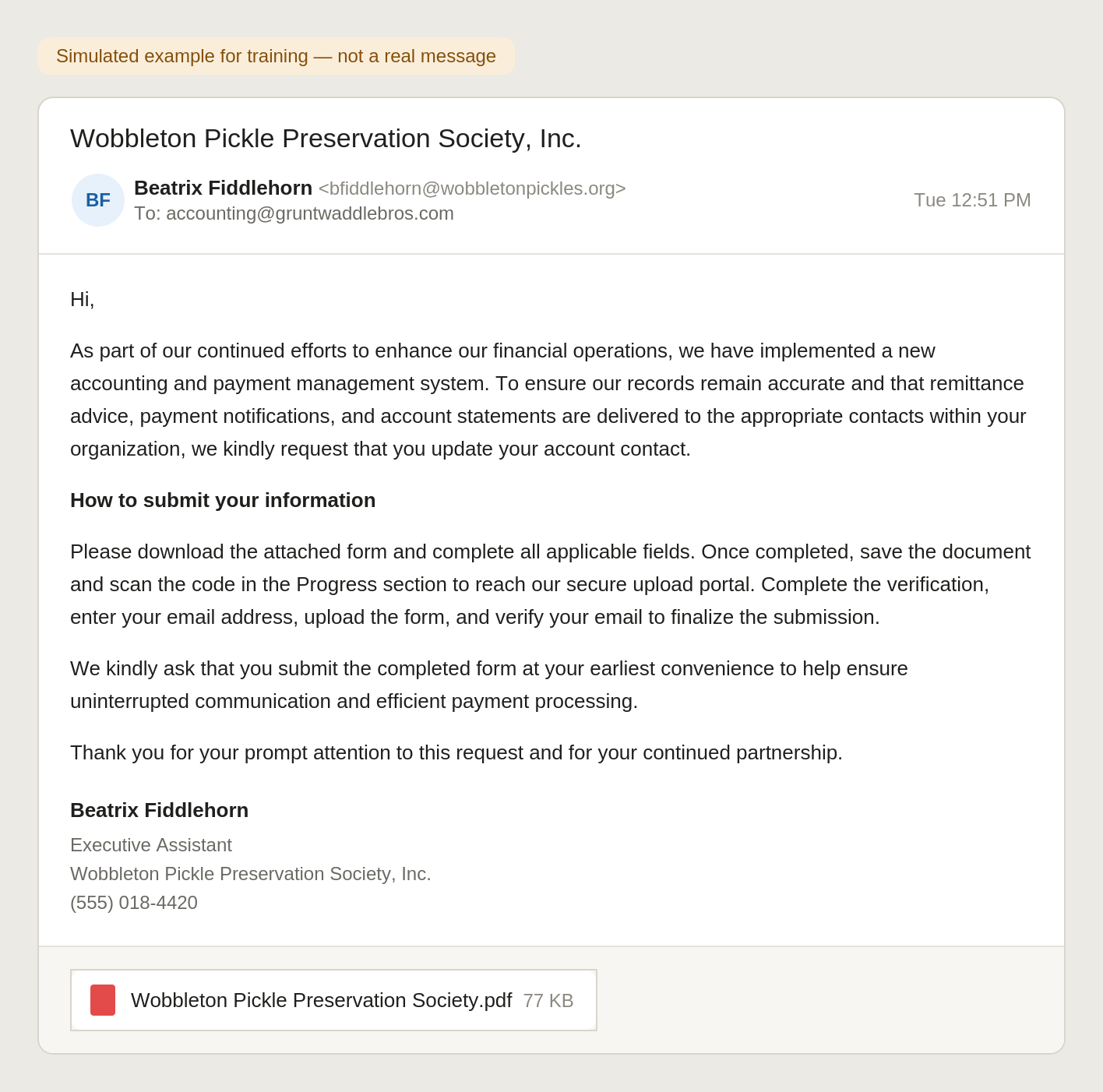
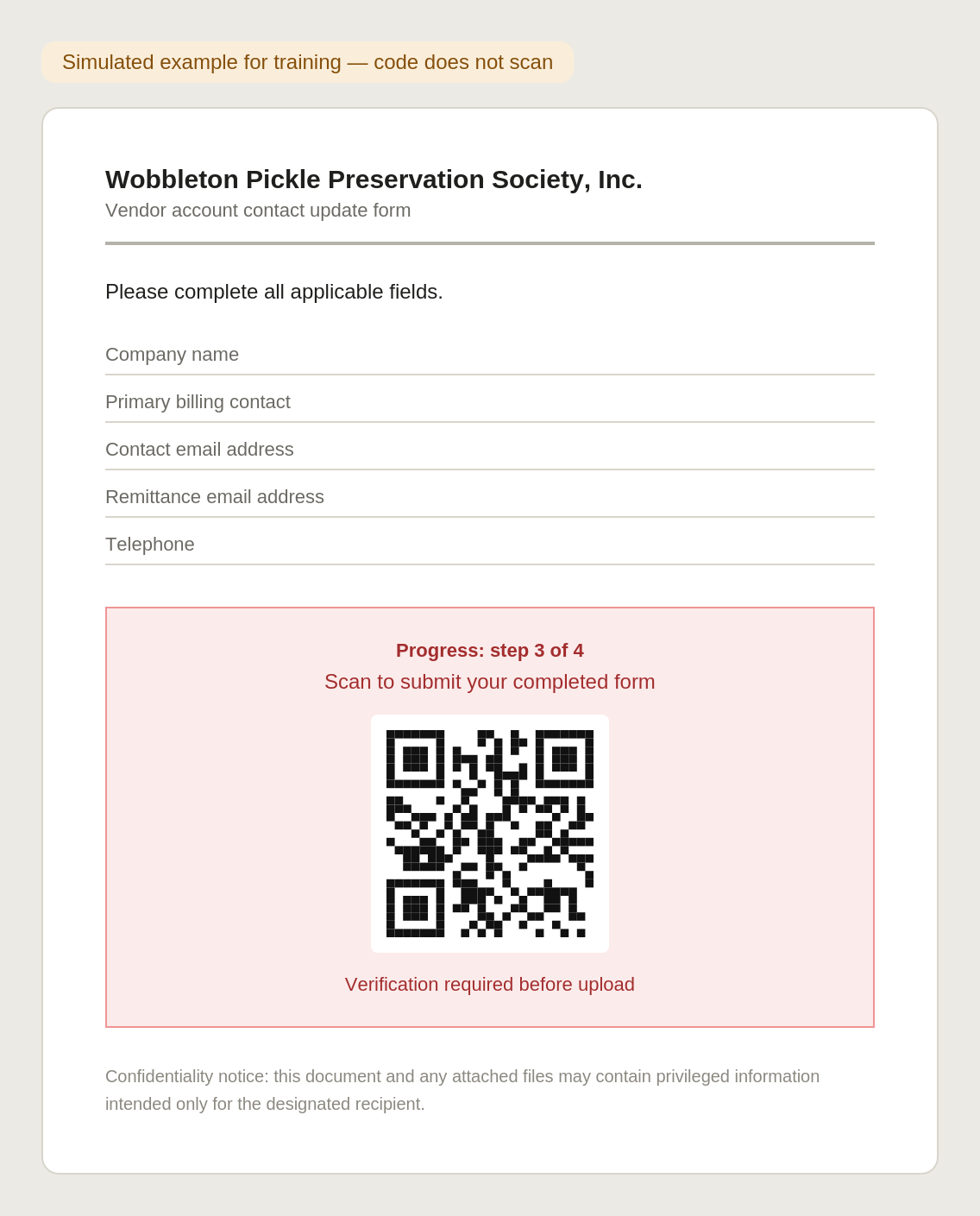
Attached was a PDF. Inside the PDF was a QR code.
Tactic one: send from a trusted mailbox, not a fake one
Most phishing training focuses on spotting the fake sender. Check the domain. Look for the extra letter. Hover over the display name.
None of that helps here, because the sender was genuine. The email passed every technical authentication check an email system can perform, because it genuinely was sent by Wobbleton’s mail server from Beatrix’s genuine account. There was no spoofing to detect.
This is now the dominant pattern in business email compromise. Attackers don’t imitate your vendors anymore. They break into your vendors and email you from inside.
What to teach: the sender being real is not evidence the request is real. The question is never only “who sent this,” it’s “does this request make sense, and did I expect it.”
Tactic two: put nothing suspicious in the email itself
We checked every link in the message body. There were two. One went to Wobbleton’s actual website. The other was a mailto address for Beatrix. That’s it.
This is deliberate. A large share of email security scoring is built around evaluating URLs in the message body — reputation, age of domain, redirect chains, whether it’s been reported before. If there are no URLs to evaluate, there is nothing to score against, and the message looks like ordinary correspondence.
What to teach: a clean-looking email is not a safe email. The absence of red flags is not the presence of green ones.
Tactic three: hide the payload behind a QR code in an attachment
The malicious destination lived inside the PDF, encoded as a QR code.
This does two things for the attacker. First, it moves the link out of the email body where scanners are strongest and into an image inside a document, where many scanners simply do not look. Second, and more importantly, it moves the click onto the victim’s phone.
Think about what that means. The company’s laptop has endpoint protection, DNS filtering, and a managed browser. The employee’s personal phone, which they use to scan the code because that’s what phones are for, has none of it. The attack jumps the fence into an environment with no controls, no logging, and nobody watching.
What to teach: treat a QR code in an unexpected document exactly like a link from a stranger. If you wouldn’t click it on your work computer, don’t scan it with your phone. Scanning is clicking.
Tactic four: use a CAPTCHA as a security guard for the attacker
The QR code led to a page dressed up as a Microsoft SharePoint file portal. Before showing anything, it asked the visitor to complete a CAPTCHA.
CAPTCHAs are so normal now that they read as a sign of legitimacy. That’s the point. But the real reason it’s there is defensive: automated security scanners that try to follow the link and analyze the destination hit the CAPTCHA and stop. The page only reveals itself to a human. The attacker is using an anti-bot tool to keep the good bots out.
What to teach: a CAPTCHA proves nothing about who owns the page. It’s a speed bump, and increasingly it’s a speed bump the criminals installed.
Tactic five: ask for the credential last, and make it feel procedural
Past the CAPTCHA, the flow asked the visitor to enter their email address, upload the completed form, and then “verify your email address” to finalize the submission.
That verification step is the whole attack. Everything before it — the form, the upload, the progress indicator — exists to make handing over a Microsoft 365 password feel like step four of a five-step business process rather than the moment you give a stranger the keys.
Notice the framing throughout. Not “your account is at risk.” Not “act now.” Just “at your earliest convenience,” “to ensure uninterrupted communication,” “thank you for your continued partnership.” Urgency triggers suspicion. Bureaucratic politeness doesn’t.
What to teach: the emotional temperature of a phish is no longer a reliable signal. Calm and routine is the new urgent and threatening.
Tactic six: aim at the money
Why a “payment contact update” form? Because the endgame usually isn’t the mailbox itself.
Once an attacker has one set of credentials at your company, the standard playbook is to sit inside the mailbox, read the accounts payable threads, learn who approves what and how invoices are worded, and then send a banking detail change from an internal address at exactly the right moment in a real conversation. By the time anyone notices, a wire is gone.
The credential theft is the entry fee. The payment fraud is the product.
The five minutes that stops all of it
Every tactic above is designed to beat technology. Not all of them survive a human being picking up a phone.
- Verify out of band. Any request to update contact details, payment information, or banking data gets confirmed by phone, using a number you already have on file. Not the number in the email. Not the number in the attachment.
- Treat QR codes as untrusted links. In an unexpected email or document, a QR code deserves the same suspicion as a shortened URL from an unknown sender.
- Never enter your Microsoft password on a page you reached from a document. Microsoft does not ask you to verify your email address to complete a file upload. If a login screen appears after a chain of clicks that started in an attachment, stop and close the tab.
- Report the near miss. Employees who scanned it and backed out are your best early warning. Make it clear nobody gets in trouble for reporting, because the alternative is finding out three weeks later.
- Tell your vendor. If a partner’s mailbox is sending phishing, they usually don’t know. Call them. Somebody should extend you the same courtesy someday.
The uncomfortable part
Filtering caught none of these messages. Seventeen mailboxes, eighteen deliveries, all marked clean. We removed them manually once the client flagged it, and we’ve escalated the detection gap to the vendor.
That’s not an argument that filtering doesn’t matter. It’s an argument that filtering is one layer, and the layer that actually worked here was an employee who looked at a routine-seeming request about payment contacts, thought that’s odd, and asked someone instead of scanning.
That instinct is trainable. It’s also, right now, the most cost-effective security control your business owns.
Questions about your own email security posture, or want us to review how your team would handle this? Reply to this newsletter and we’ll take a look.