

Happy Friday! Here’s what’s on deck this week: exactly what to do in the first hour of a cyberattack, a phishing email that got past filtering with no links in it at all, why your work VPN may quit after you switch home internet providers, how we use AI to build documentation — plus the webcam we put on our own desks.
Thank you for reading. Stay safe out there.
– Brad Otto
Tip of the week
What to Do in a Cyberattack, Step by Step
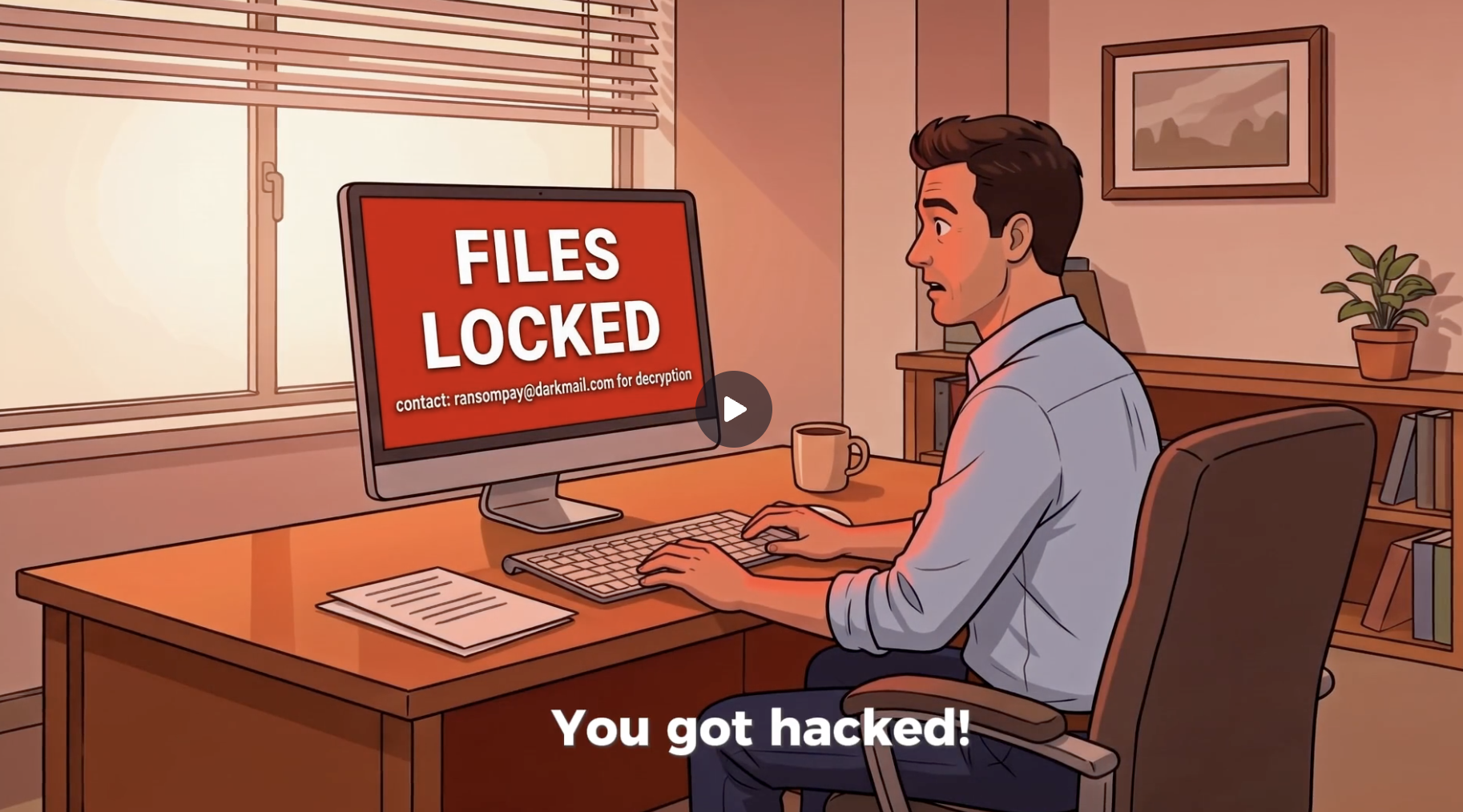
If an attack hits your business, the first hour decides how bad it gets — and it’s also the easiest time to make a costly mistake. Four things to get right before anything else:
Disconnect, don’t power off. Unplug the network cable and turn off Wi-Fi on anything that looks affected. Shutting a machine down can wipe evidence stored in memory. Only power it off if you can’t get it off the network any other way.
Don’t delete anything. Leave the ransom note, the suspicious email, and any alerts exactly where they are. That’s what your IT team and investigators will need.
Call your IT provider by phone. Don’t email — if an attacker is sitting in your inbox, they’re reading it. Same goes for your cyber insurer, since many policies require their incident team early.
If money was wired, call your bank now. Ask them to recall and freeze the transfer. The FBI’s Recovery Asset Team recovers funds in roughly 70% of cases reported to IC3 within 72 hours — but that window closes fast.
After that: reset passwords from a clean device, turn on multi-factor authentication starting with email and admin accounts, and report the attack. The full walkthrough — including where to report in the US, UK, and Australia, and why the FBI says not to pay the ransom — is on our site. And the best time to sort all of this out is before it happens: one page with who to call, where your backups are, and which accounts matter most is enough for most small businesses.
Prefer to watch it? Here’s the same plan, step by step:
Cybersecurity news
The Phishing Email With No Links In It
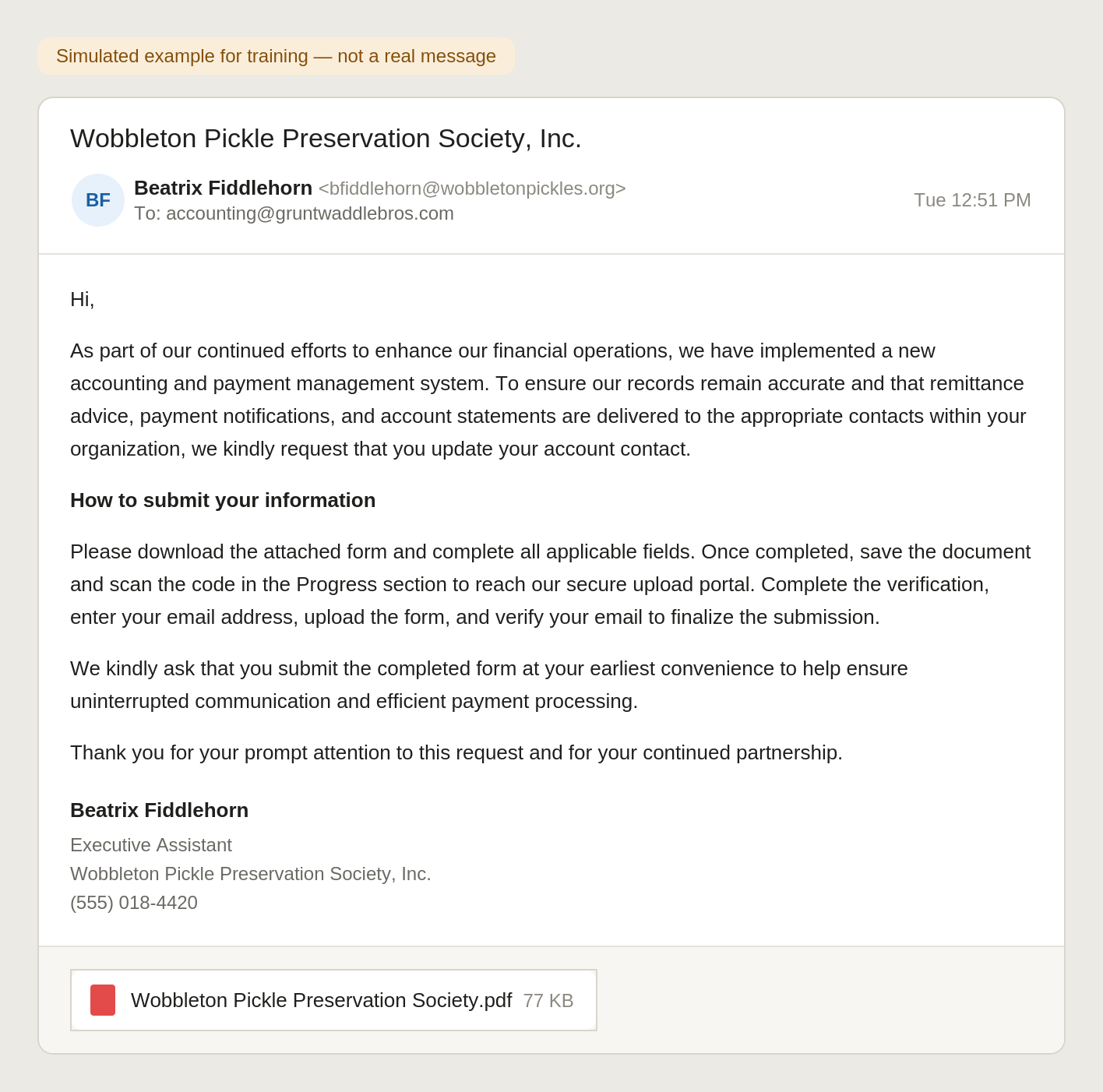
Seventeen mailboxes at one of our clients got hit in a forty-two minute window last month, and email filtering marked every single message clean. There was no misspelled domain and no panicked “your account will be closed” threat — just a polite note from a real contact at a real vendor asking them to update their payment contact info using an attached form.
The trap was a QR code inside the PDF, which moves the click off the protected work computer and onto a personal phone where nothing is watching. We broke down all six tactics the attackers used, and the five-minute habit that stops every one of them.
Working with P3C
Switching to T-Mobile Home Internet? Check Your Work VPN First
As people work to lower costs on home internet, a lot of folks are turning to cellular options like T-Mobile Home Internet. It’s a nice, inexpensive option compared with Spectrum and the other big providers. The call we get after the switch, though, is almost always the same: “my work VPN suddenly stopped working.”
We asked T-Mobile about it. Here’s their answer, in their words:
“A VPN is a secure tunnel that allows you to connect to your company’s network from home. It relies on certain internet features — such as stable IP addresses and open ports — to keep that tunnel functioning smoothly. T-Mobile’s Home Internet service is primarily designed for everyday use, like streaming, browsing, and gaming. To accommodate millions of customers, T-Mobile utilizes something called Carrier-Grade NAT (CGNAT). This means your connection shares a public IP address with other customers. While this setup works well for most online activities, it can interfere with advanced configurations like VPNs that require direct and consistent connections. WireGuard, in particular, utilizes a protocol called UDP, which may not always function optimally with CGNAT. This is why you might experience dropped connections or difficulties connecting altogether. This issue is not related to your VPN software or your company’s network; rather, it is a limitation of how T-Mobile’s Home Internet is structured.”
Keep this in mind if you’re shopping home internet providers. It doesn’t make the switch impossible, but it may make you think twice. If you go with T-Mobile and you rely on a work VPN from home, make sure you have a cell phone hotspot available as a fallback. And if you’re weighing the change, give us a call first — we’ll tell you what to expect.
The AI and Automation Minute
Documentation Your AI Can Actually Use — and the Shadow AI Problem
Part 1: Building a culture of documentation
Here at P3C we try to foster a culture of documentation. Whenever we learn something new, it becomes a standard operating procedure or a knowledge base article. We also keep a master documentation index — topic, document title, a summary of what the document covers, and the author. Our AI agent scans that index whenever we ask it to pull applicable documentation to help solve a problem or execute a task. The index is what turns a pile of files into something an AI can actually work with.
Here’s a real example of how I had our AI tool write a new document for us. The task: whitelist two vendor email addresses for a client so their emails come through instead of getting marked as junk. The prompt was essentially this:
“Hey Copilot — turn this into a Word document procedure so I can import it into our documentation management system: Procedure name: Creating a custom rule to whitelist two email addresses. Creating a custom rule lets you whitelist email addresses while not exposing the organization to malicious emails from the other party. How to do it: Policy > Custom Rules > create the rule, but exclude malware, phishing, impersonation, and banned. Here is a ticket example: ticket number xxyyzz. And here are 2 screenshots showing the procedure.”
What came back was a branded, multi-page procedure: a checklist for the repeatable process, success criteria, the screenshots embedded in the right spots, and step-by-step instructions inferred from what it knew about the product plus what it could see in my screenshots. A few minutes of rough notes became a document we’ll use for years.
Part 2: Watch out for Shadow AI
One of the most expensive little words in business is “just.” I’ll just paste this client email into an AI tool. I’ll just upload the spreadsheet. I’ll just let this meeting bot take notes. I’ll just use my personal account this once.
None of these actions look like a security incident, which is exactly why they’re so easy to miss. But if several employees are doing this with AI tools the business hasn’t approved, there may be no clear record of what information is being shared or where it is going. That’s Shadow AI, and if left unattended, it can take over your business.
Check out this video of the Shadow AI Villain — and if you want our help preventing it, drop us a line.

More at ai.p3ctech.com — our AI and automation hub, home to the book Beyond the Prompt, a free AI Acceptable Use Policy download, and our upcoming P3C AI and automation events.
Product of the week
Logitech Brio 4K Webcam
Clients ask us for webcam recommendations all the time. This is the one we recommend most often — and the one sitting on our own computers.
- Up to 4K at 30 fps with autofocus and 5x digital zoom — excellent resolution, color, and detail
- RightLight 3 automatically adjusts exposure and contrast to fight glare and backlighting
- Three field-of-view presets: 65° for a head-and-shoulders framing, 78° or 90° to show more of the room
- Dual omnidirectional mics with noise cancellation, clear from up to about four feet away
- Windows Hello facial recognition login via the built-in infrared sensor
- Attachable privacy shutter that flips up and down
- Logi Options+ app for zoom, color presets, manual focus, and firmware updates
P3C Technologies is an Amazon Associate and may earn a small commission from qualifying purchases made through this link, at no additional cost to you. We only feature products we actually use.

You’re receiving this because you’re a valued P3C client or partner.