
You're in a hurry. You go to type "associatedbank.com" into your browser, but your finger slips — you leave out a letter. The page loads anyway. It looks close enough. You don't think twice.
That one missing letter is all it takes.
What Happened
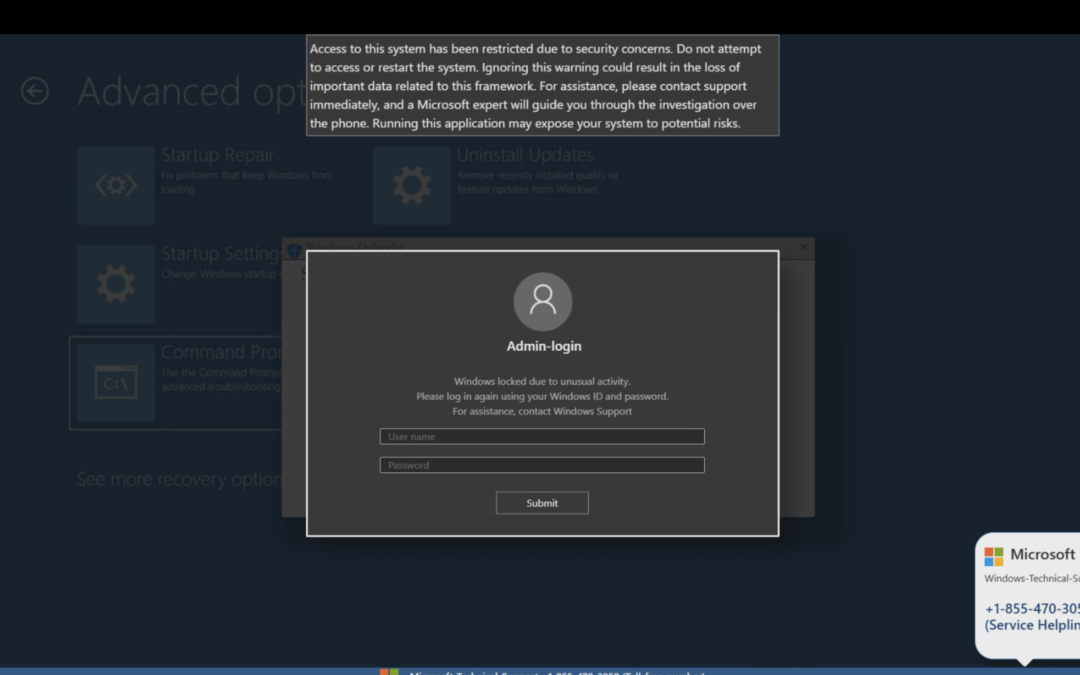
A client recently landed on a lookalike domain after mistyping Associated Bank's website by a single character. Instead of a bank login page, the browser filled with a full-screen warning: "Access to this system has been restricted due to security concerns," a fake Windows Defender popup, and a bogus "Admin-login" box asking for a Windows username and password — all wrapped around a phone number for "Microsoft Technical Support."
None of it was real. It wasn't Microsoft. It wasn't Windows Defender. It wasn't even related to the bank the person meant to visit. It was a tech support scam, and it only showed up because of a typo.
Why This Isn't Random Bad Luck
Scammers don't wait around hoping someone fat-fingers a URL. They plan for it. This is called typosquatting, and it works like this:
- They map out common typos. Using SEO and keyword research tools — the same kind marketers use to find what people search for — attackers identify the most frequent misspellings, dropped letters, swapped letters, and missing dots for popular websites: banks, payment processors, software vendors, even Microsoft or Google themselves.
- They buy the domains. Once they know people regularly type "asociatedbank.com" or "gmial.com" or "microsft-support.com," they register those exact domains — often dozens or hundreds at a time, cheaply and in bulk.
- They point them at something harmful. Some lookalike domains host a near-identical fake login page designed to steal your real credentials. Others — like the one in this example — run a "scareware" script: a full-screen popup designed to look like a system lockout, pressuring you to call a fake support number where a scammer will try to talk you into installing remote access software or paying for a fake "fix."
- They let search engines and autofill do the rest. Some of these sites are even optimized to show up in search results for the misspelled term, or get bookmarked/autofilled after a single visit, increasing the odds someone lands there again.
Why the Popup Feels So Convincing
These fake alert pages are built to imitate real Windows and Microsoft branding almost exactly — logos, color schemes, familiar system dialog boxes — and they lean hard on urgency and fear: "do not restart your system," "your data may be lost," "call now." That combination is deliberate. It's designed to short-circuit the moment where you'd normally stop and think.
The giveaway is almost always the same: a real security issue never asks you to call a phone number pulled off the screen itself, and Microsoft does not lock your computer or display phone-support popups through your browser.
How to Protect Yourself and Your Team
- Double-check the address bar before you type sensitive information. Look at the full domain, not just the first part — one extra or missing letter is often the only difference.
- Use bookmarks or saved passwords for banking and financial sites instead of typing the URL from memory every time. Password managers won't autofill credentials on a lookalike domain, which makes them a surprisingly effective typo-catcher.
- Never call a phone number that appears in a browser popup, and never let a popup convince you to install software or grant remote access. Close the browser tab (or the whole browser) instead of interacting with the warning.
- If a "lockout" screen won't go away, don't restart into recovery mode or follow on-screen instructions — that's often part of the scare tactic. Contact your IT provider directly using a number you already have on file, not one from the screen.
- Train your team to expect this. The person in this story did everything right after the popup appeared — they didn't call the number and reported it — because they knew who to check with. That instinct is worth building deliberately.
The Bottom Line
Typosquatting works because it targets a moment of autopilot, not a lack of intelligence. It's the kind of thing that can happen to anyone, on any device, at any time of day. The best defense isn't perfect typing — it's knowing what a real warning looks like versus a manufactured one, and having a clear, calm next step when something feels off.
If your team has ever landed on a page that "didn't look quite right," or you want help building a quick reference for what a real Microsoft/Windows alert looks like versus a fake one, reach out to P3C Technologies. We're happy to help.