

Happy Friday! Here’s what’s on deck this week: the Microsoft MFA change that already started, a fake login page that bought its way to the top of search results, two things worth locking down in your business, and the AI engine you may already be paying for.
Thank you for reading. Stay safe out there.
– Brad Otto
Tip of the week
Microsoft Is Retiring Text-Message and Phone-Call MFA. The Clock Already Started.
If your team verifies Microsoft 365 sign-ins with a texted code or an automated phone call, that method is going away — and phase one is already underway.
As of September 1, 2026, users still enabled for SMS or voice authentication began being automatically enabled for passkeys and prompted to register one. That’s why some of your people may already be seeing an unfamiliar “set up a new sign-in method” screen. On February 1, 2027, Microsoft-provided SMS and voice delivery is retired outright. After that, anyone whose only MFA method is a text or a phone call gets a blocking prompt and has to register a passkey before they can sign in.
MFA isn’t going away — Microsoft is retiring its weakest delivery method, because a texted code can be intercepted or socially engineered in ways a passkey can’t.
What to do now: move everyone off SMS and voice to the Microsoft Authenticator app with number matching, a passkey, or your preferred MFA app. P3C recommends a few — Google Authenticator, LastPass Authenticator, or Duo all work well.
Not sure what your account currently uses, or how to add something new? We wrote a step-by-step walkthrough: How to review and add your Microsoft 365 sign-in methods.
Be careful which one you download. Scammers post look-alike authenticator apps to the Apple and Google app stores, complete with convincing icons and fake reviews. An imposter MFA app is worse than no MFA app. Check the publisher name, not just the app name. Got questions? Ask us — support@p3ctech.com.
One warning for your staff: never approve an authentication prompt you didn’t personally trigger. If a “register a new sign-in method” screen shows up unexpectedly, stop and call us. Attackers count on people clicking through prompts they don’t recognize.
Cybersecurity news
A Fake Login Page Bought Its Way to the Top of Search Results
Pantheon, a major web hosting platform, published a security advisory this month after customer accounts were accessed without authorization. The interesting part is how.
Pantheon initially reported that the accounts were compromised using passwords stolen in unrelated third-party breaches — then corrected itself. The evidence showed credentials were captured on a fraudulent copy of the Pantheon sign-in page. That look-alike page was promoted through paid search results, and after capturing what people typed, it forwarded them straight to the real Pantheon dashboard. Most victims saw nothing unusual at all. They typed their password, landed where they expected to land, and went about their day.
Pantheon’s own systems were never compromised. The company has since reset passwords and revoked unauthorized access, machine tokens, and SSH keys for confirmed affected accounts. To be clear: this affected other Pantheon customers, not P3C clients.
Here’s why this matters to you. Nothing technical failed. A habit failed. People reached a login page by searching for it and clicking the top result — and the top result was an ad an attacker paid for.
This kind of fraud, where an attacker stands up a convincing fake of a legitimate service, is rampant right now. It is cheap to build a pixel-perfect copy of a login page, and it is cheap to buy your way to the top of a search results page for a few days. We have covered versions of this before — see our look-alike domain warning in Issue #1 and the team homepage tip in Issue #3.
The fix is a habit, not a product: never reach a login page through a search engine or an email link. Type the address yourself, or use a bookmark you created when you knew you were in the right place. And treat sponsored results at the top of a search page with real suspicion.
Working with P3C
Two Things Worth Locking Down: Your Passwords and Your Hard Drive
Reusing passwords is still the single most common way small businesses get breached. One reused password in a service that gets breached becomes a key to everything else. A password manager fixes that permanently: every account gets a long, unique, random password, and nobody on your team has to remember any of them.
If you are on our Responsive or Fully Managed Up-to-Date program, MyGlue is already included in your plan at no additional monthly cost. It is a business-grade password manager with secure sharing, so your team can hand off credentials without emailing them or writing them on a sticky note.
The catch — and it is the only one — is that a password manager only works if your team actually uses it. Half-adoption is worse than none, because you end up with credentials in two places and no one sure which is current. If you would like us to get your team set up and trained, reach out and we will walk through it with you.
Now the drive itself. BitLocker is Windows’ built-in drive encryption. It scrambles everything on the hard drive so that a lost or stolen laptop is a hardware problem instead of a data breach. Without it, anyone who picks up that machine can pull the drive and read every file on it.
If you handle client PII, health information, or financial records, encryption is not a nice-to-have — it is usually the difference between “we lost a laptop” and “we have a reportable breach.”
Occasionally Windows will ask for a recovery key, a 48-digit number, before it will unlock the drive — typically after a firmware update or a hardware change. Two things you should know: Microsoft Support cannot retrieve, provide, or recreate a lost recovery key. And on a work-managed device, that key is normally backed up and managed by the organization’s IT department, specifically so they can help you recover data when a machine will not open. For our managed clients, that is us — we hold your keys.
If you would like your own printed copy:
1. Click Start, type Manage BitLocker, and open the Control Panel result.
2. Find the drive showing BitLocker on (usually Windows (C:)) and expand it.
3. Click Back up your recovery key.
4. Choose Print the recovery key.
5. Print it, then click Finish.
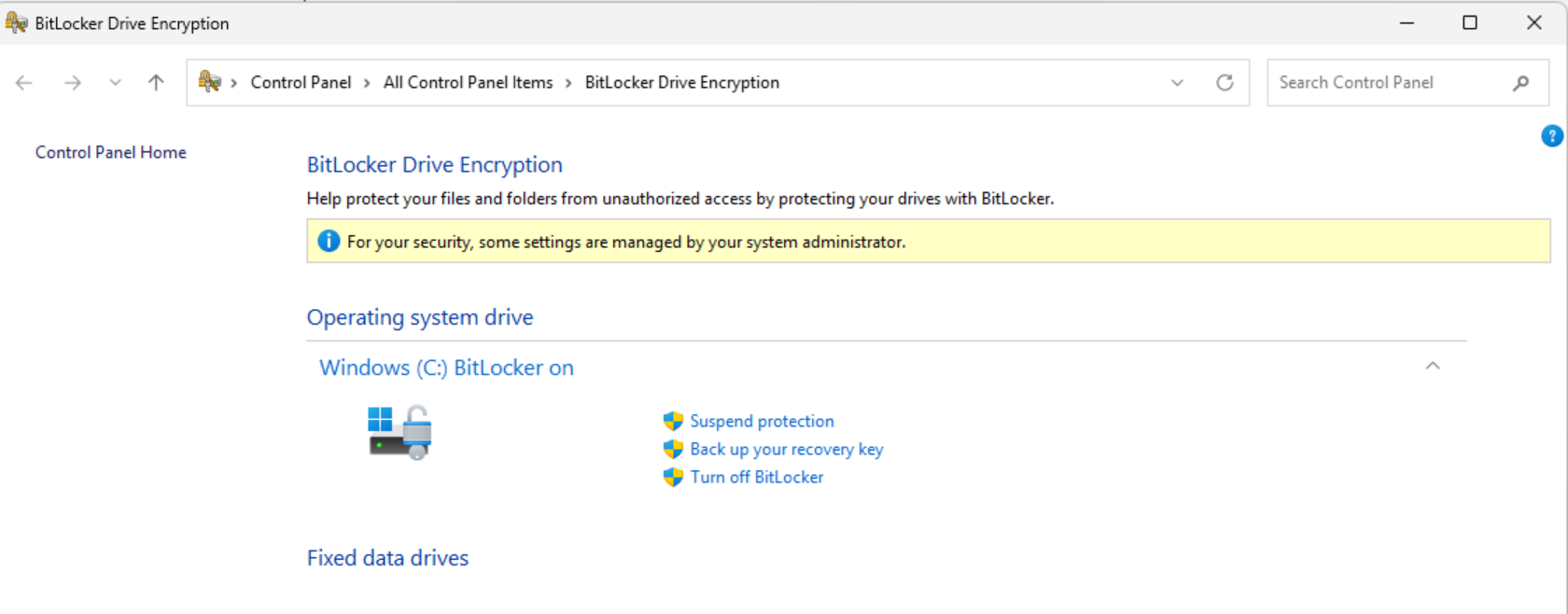
These steps are written for Windows 11 Pro. Seeing something different? Ask us — support@p3ctech.com.
Where that printout should not live: in the laptop bag, taped under the keyboard, or in the desk drawer beside the machine. If someone steals the computer and the key together, they walk right past the encryption. Put it in a safe, a locked file, or your password manager.
One last note. The most common gap we find during new-client onboarding security assessments is unencrypted drives — machines that were never turned on, on networks that otherwise look fine. If you are not certain yours are encrypted, ask us and we will check.
The AI and Automation Minute
You Might Already Be Paying for Claude and ChatGPT
People tell me all the time that they would rather use Claude or ChatGPT than Copilot — better model, more knowledgeable, gives better answers. Fair enough. Here is the thing: if you have a licensed Copilot seat, you already have both. Microsoft licensed them.
There is a dropdown in Copilot that lets you pick which engine answers you. GPT models from OpenAI, Claude models from Anthropic. Same window, same file, same data — you just choose the brain.
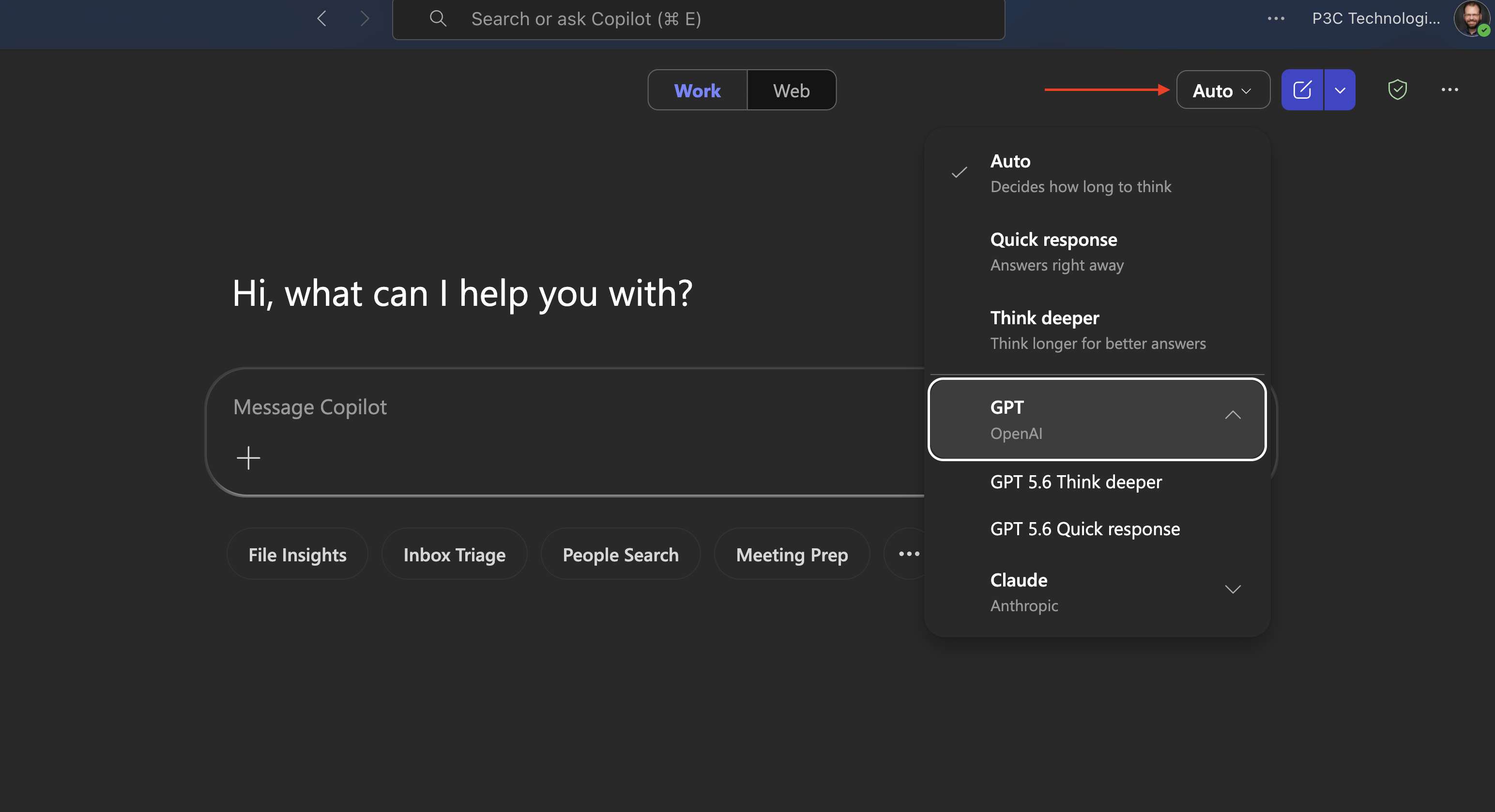
Claude shows up across Copilot Chat, Word, Excel, PowerPoint, and the Researcher agent. In the picker you may see model names containing “Opus” — you do not need to know what any of that means to use it. Auto is a perfectly good default for everyday work. Reach for the dropdown when a task feels like it needs deeper reasoning, then compare.
The part that matters for your business: these run under your Microsoft enterprise data protections. Your prompts and responses are not used to train anybody’s models, and Copilot can still only see the files, emails, and chats you already have permission to open. That is the whole argument for doing this inside Copilot instead of letting staff paste company data into a free chatbot in another tab.
Not seeing the dropdown? Two likely reasons.
First, licensing. Everyone gets Copilot Chat — the free version, fine for basic queries. Model choice comes with a Microsoft 365 Copilot license, purchased on top of your Microsoft 365 apps license.
Second, an admin switch. Even with the paid license, Anthropic models stay hidden until someone enables them in the Microsoft 365 admin center. If you are a managed client, that is a setting we control — just ask and we will turn it on.
Questions about your Microsoft licensing or how licensing for any AI tool works? We will walk you through it — support@p3ctech.com. We also offer add-on self-paced training on using AI in your organization. If you are interested in learning more — just ask.
Everything we are building lives at ai.p3ctech.com — including my book Beyond the Prompt, a free AI Acceptable Use Policy you can download and adapt for your team, and our upcoming AI and automation events.

You’re receiving this because you’re a valued P3C client or partner.