

Happy Friday! Here’s what’s on deck this week: why that scary “virus detected” pop-up probably isn’t a virus, a brand-new IT Vocab section (starting with DNS), a shortened link we caught hiding a stranger’s remote control, how to get new hires ready on day one, a lesson in AI getting it wrong, and a pocket-sized fix for the hotel room with one outlet.
Thank you for reading. Stay safe out there.
– Brad Otto
Tip of the week
That “virus detected” pop-up? It’s probably a website you said “Allow” to
This week a client was searching for something work-related and suddenly got buried in “virus detected” alerts. There was no virus. At some point, a sketchy website had popped up a little box asking to show notifications, and it got clicked without a second thought. That one click lets the site push alerts to your screen even after you close the page. They’re designed to look like Windows security warnings, but they’re really scare ads trying to get you to call a fake support number or install something. (Sound familiar? See this week’s Cybersecurity News below.) We removed the permission, scanned the computer, and it came back clean.
If you see one: don’t click it, and don’t call any number it shows. Close your browser and call us.
The real fix is to stop the prompts before they start. Paste one of these into your browser’s address bar:
Microsoft Edge: edge://settings/content/notifications → turn off Ask before sending.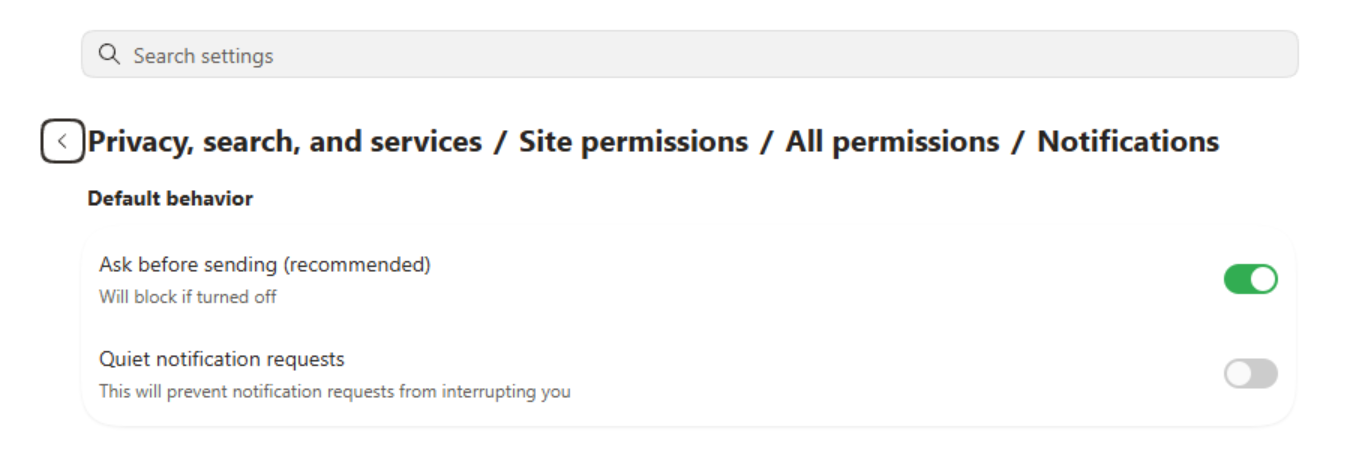 Google Chrome:
 chrome://settings/content/notifications → choose Don’t allow sites to send notifications.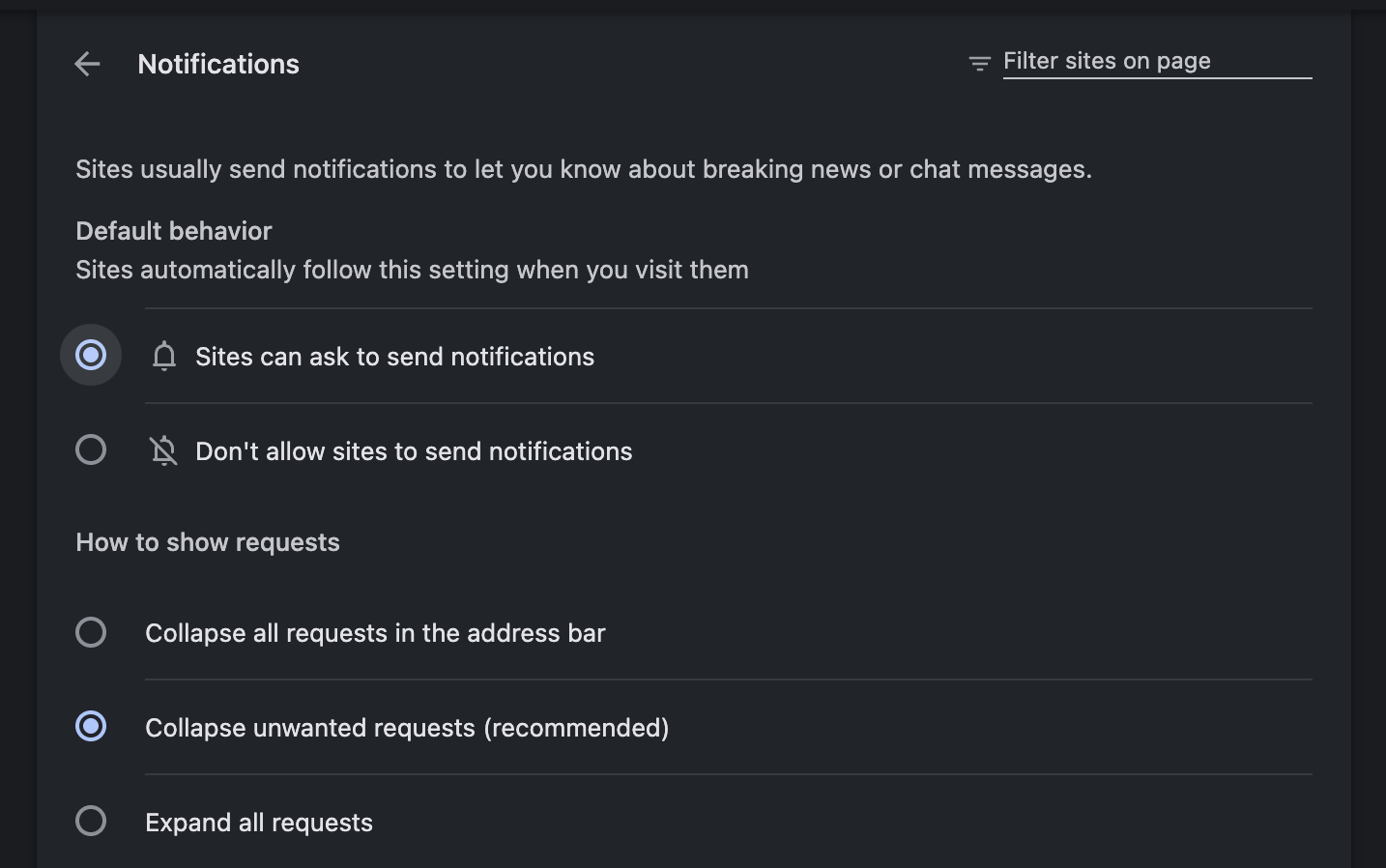 On the same page, check the Allowed list and remove anything you don’t recognize.
Middle ground: if you rely on notifications from a site or two, turn on Quiet notification requests (Edge) or Use quieter messaging (Chrome) instead. Requests shrink to a small icon in the address bar, so there’s no big “Allow” button to click by accident.
IT vocab of the week
DNS
DNS stands for Domain Name System, and it’s the internet’s phone book. Computers find each other by number (an IP address like 142.250.190.78), but people remember names like p3ctech.com. Every time you visit a website or send an email, your computer quietly looks up the name to find the number. That lookup is DNS.
Why it matters: almost everything online starts with a DNS lookup. If DNS is wrong or broken, the internet can look “down” even when your connection is fine.
How we use it to protect you: because every website visit starts with a DNS lookup, it’s the perfect checkpoint. Our DNS filter checks each lookup against lists of dangerous and suspicious sites. If something looks bad, you get a block page instead of the website. That’s exactly how this week’s shortened link got caught before anything downloaded.
The running joke in IT: when something breaks, the last place anyone checks is often the culprit, and it’s DNS more often than you’d think. A website that won’t load after moving to a new host, email bouncing or landing in spam, Microsoft 365 setup hiccups: a surprising share of “mystery” problems end with a DNS record that’s missing, outdated, or wrong. Even the records that prove your email is really from you (SPF, DKIM, and DMARC) live in DNS.
Cybersecurity news
A short link with a stranger’s remote control hiding behind it
Earlier this week, our DNS filter blocked a shortened link (the cutt.ly kind) on a client’s computer. The user hit the automatic “please unblock this” button without giving a reason, so Ray on our team checked where the link actually went before approving anything.
Behind that short link was a direct download of ScreenConnect, a remote access tool, tied to an outside account that has nothing to do with P3C or the client. If it had been installed, a stranger could have taken full control of that computer. We denied the request and followed up with the user.
If this sounds familiar, it should. In Issue #8 we covered the rogue ScreenConnect scam. It’s the same playbook with a different disguise, and this time the shortened link hid the installer.
What to take away:
• Shortened links hide where they really go. If you weren’t expecting one, don’t click it.
• No legitimate company sends you a remote access installer you didn’t ask for. As we said last issue, P3C’s own ScreenConnect install is legitimate. A surprise install is not.
• A block is a stop sign. If you request an unblock, tell us why. If you’re not sure, call us first.
• Already clicked and ran something? Disconnect from the network and call us at 262.423.6267.
Working with P3C
Ready on day one: build a new-hire checklist with us
Nothing slows down a new employee’s first day like waiting on a login. The fastest way to avoid that is to give us the basics as early as you can:
• name and start date
• job title and who they report to
• whether they need a new computer or are taking over an existing one
• their cell phone number, so we can communicate directly with the new hire
• which programs, shared mailboxes, and folders they’ll need
• whether they’ll work in the office, remotely, or both
Our best clients take it a step further. They sit down with us once and build a new-hire checklist for their business, so every hire gets the same setup without anyone reinventing it. Once it’s written down, we can often automate parts of it.
Interested? Email support@p3ctech.com to open a ticket, and we’ll set up a time with you to review your new hire process.
The AI and automation minute
When AI gets it wrong: how “renew” turned into “cancel”
At P3C, AI transcribes our voicemails, and automation uses that summary to title and sort the ticket. Most days, it’s a huge time-saver. Recently, though, a client left a voicemail about the renewal for their built-in antivirus. The AI summarized it as “you don’t have to renew it,” and the automation then renamed the ticket “Cancel Antivirus.” That’s two AI mistakes stacked on top of each other, turning a routine renewal question into a cancellation request. We caught it by listening to the original voicemail.
The lesson isn’t “don’t use AI.” It’s to keep a human in the loop:
• Let AI draft and sort.
• Don’t let it make the final call.
• Verify before you act, especially when the action can’t easily be undone.
The best way to make that stick is to write it down. An AI Acceptable Use Policy is the place for rules like this, and ours is free at ai.p3ctech.com.
Product of the week
The sidekick to last week’s travel charger: Anker 341 Power Strip
In Issue #8, I shared the Anker travel charger I keep in my bag. This is its partner for the other end of the problem: hotel rooms, conference tables, and desks that never have enough outlets.
It’s about the size of a smartphone and weighs under a pound, but it has 8 AC outlets on three sides, 2 USB-A ports, and a 20W USB-C port for fast phone charging. It also has 2000J of surge protection, a slim 5-foot cord, and a flat plug that fits behind furniture.
One honest note: the USB ports are for phones and accessories. For a laptop, plug in the travel charger from last week. Together they cover just about everything.
As an Amazon Associate, P3C Technologies earns from qualifying purchases.

You’re receiving this because you’re a valued P3C client or partner.